Make The Website Professional

Today, I am going to show you how easy it is to create a professional-looking Flash website for free.

Know To Spread The Web

So you've made a new site, huh? But no one knows about it! Here you will find tips to spread news about a website that you've created!.

The Path To Be An Expert Geek

In this website one can find many TIPS AND TRICKS of Computer,Internet,Web,Mobile And Blogger Tips.

To Increase The Knowledge Of Bloggers

In This Site We Want To Increase The Knowledge Of Bloggers About Blogging To Be A Better Blogger.

How To make Money Online With Your own Website

If you look at many websites, you will probably notice that there are banner advertisements displayed on most pages. If you are a newcomer to the scene, you might think that you must either be a company or that your site must be famous before you can get advertisers, just as it is the case in hardcopy publications..

Get our toolbar!

Tuesday, August 7, 2012

Add Social Bookmarking Widget With Tooltips For Blogger


Social bookmarking widget is need of every blogger thats why you see such gadgets almost on every blog.Social bookmarking widgets helps you to boost traffic on your blog.Today I am sharing an amazing social bookmarking widget which comes with beautiful animated tooltips,when any user hovers on the social icons the tooltip comes out also it applies a opacity effect to these social icons,this effect increase beauty of this widget.Credit for this widget goes to Shareaholic.Now lets see hoe to add it to your blog,also see the demo at the bottom of this post.

How To Add This Widget To Blogger?


I have created a blogger widget generator form for this widget.Follow below simple steps to add this widget to your blog.

You must login to your blogger account first.
Click on below Add to Blogger button
Now you will redirect to blogger add widget page
Choose your blog and add click on Add Widget button
Drag the widget at the bottom of your page layout
Finally click on Save Arrangements button and you are done.

Note - This widget will appear on post pages only,if you want to show this widget at the bottom of every post on your homepage then remove first line (<b:if cond='data:blog.pageType == "item"'>) and last line(</b:if> from the code.

Monday, August 6, 2012

How To Make Blog Post Audioble


Hey frnds have you ever thought of making your blog post audioble for the the comfort of readers.
If not than here is the steps for it....


Its very easy!You have to follow just the steps given below.
First go to the Sign up page and fill the form as shown in the picture below and click submit button.Note that you can add your blog URL or your Feed URL.


Now you have to check your Email in which you will get a Blog or Feed id e.g.22350.
Now Grab those listen buttons by Clicking here.
Now you will see a blank area in front of Feed id as shown in picture below.You will enter that Feed id there and click submit button.
When you click the submit button, you will be taken to another page in which you will see a button "Add Odiogo Listen Button Widget", click this button.
You will be drop to blogger add widget page.You have to click the Edit Content link to have the widget code as shown in picture below.Select all that code and copy it to a notepad.


If you want the widget to appera below post title, you have to search this code in your blogger template shown below:
<div class='post-header-line-1'>
After this copy the Odiogo widget code and paste it here and click encode button.Now add the encoded code just below the code shown above.Note that you have to put enclose the encoded code b/w <div> and </div>.


If you want the widget to appear at the end of post body, you have to add the encoded code with "div" tags enclosed just below the code given:
<data:post.body/>


Save your template and you are done.


Thats it!!
Now enjoy your blog.


PRASHANT KUMAR

Sunday, August 5, 2012

Know To Make Use Of CSS To Create An Image Map On Websites.


In the early days of the World Wide Web, HTML designers were always on the lookout for ways to make their pages as graphically and feature rich as possible. This was no small task. XHTML, CSS, JavaScript and Flash were nowhere to be seen and companies were pressed to make their presence on the Web memorable and unique as everyone rushed into this new frontier.

One of the Web designer’s most trusted tools to this end was the Image Map. Basically an elaborate variation of the <a> tag, an image map allowed an image file to contain multiple hotspots that linked to any number of Web pages or external sites. Many early Web sites relied on an image map on the home page to uniquely identify themselves.

But thanks to the rise of Flash technology, image maps are rarely used anymore. However, CSS does allow you to create an image map with some subtle mouse over effects with a few slick modifications to the <ul> and <li> tags.


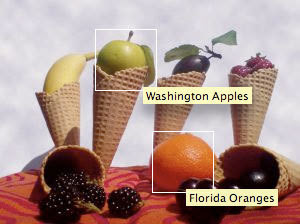
For this exercise, we’re going to use the image shown in Figure A to create an image map with two hotspots using CSS code. Save the file to your hard drive and then open it in an image editor that will allow you to measure the image in pixels.

Figure A


This image will be used to create a CSS image map

Now that you have the image saved to your hard drive and open in an image editor, let’s start coding the HTML and CSS code that will make the image map. In a text or HTML editor, enter the code in Listing A, then save your file with an .htm extension.

Listing A


<html>


<head> 


<title>CSS Image Map</title> 


</head> 


<body>


<div id="photo"> <ul>


<li class="apple"><a href="http://www.bestapples.com" title="Washington Apples">Washington Apples</a></li> 


<li class="orange"><a href="http://www.floridaorange.com" title="Florida Oranges">Florida Oranges</a></li> 


</ul> 


</div> 


</body>


</html>


You can see that by the content of the body of the HTML code that we will be using CSS to style a bullet list (i.e., <ul> and <li> tags) in order to make the hotspots for our image map. In fact, if you were to preview the document in a browser right now, all you would see is a bullet list.

Let’s start writing the CSS code and creating a style ID called “photo.” Begin by entering the code into the <head> of the document that you see in Listing B.

Listing B


<html>


 <head> 


<title>CSS Image Map</title> 


<style type="text/css">  


#photo {     


width: 300px;      


height: 224px;     


position: relative;       


background-image: url(images/fruity_cones.jpg);    


background-repeat: no-repeat;


 } 


</style>


</head> 


<body>


<div id="photo"> <ul>


<li class="apple"><a href="http://www.bestapples.com" title="Washington Apples">Washington Apples</a></li> 


<li class="orange"><a href="http://www.floridaorange.com" title="Florida Oranges">Florida Oranges</a></li> 


</ul> 


</div> 


</body>


</html>


Note in line five of the code that the CSS style is denoted with a hash mark, or pound sign (#), at the beginning of the photo style. This tells the browser that the style is an ID type and not a Class type, which is denoted with a period (.). CSS IDs are preferable to Classes in many cases, because if an HTML element is wrapped with <div> tag that is defined as an ID, rather than as a Class, we can define how other HTML tags within that <div id> will be displayed and no further markup to the HTML within that <div id> tag will be needed.

You can also see in line nine of the code that we are using the downloaded image from Figure A as a background image. This is because both Internet Explorer 6 and 7 have issues displaying the <ul> and <li> elements over an image that is placed with an <img> tag. Be sure that the path to the image fruity_cones.jpg on your hard drive is accurately coded in relationship the .htm document that you’re building.

Now that the #photo ID has been established, let’s code the cascading elements that will appear within the ID. Enter the new code that you see in Listing C.

Lisitng C


<html>


 <head> 


<title>CSS Image Map</title> 


<style type="text/css">  


#photo {     


width: 300px;      


height: 224px;     


position: relative;       


background-image: url(images/fruity_cones.jpg);    


background-repeat: no-repeat;


 } 


#photo ul {   


margin: 0;   


padding: 0;   


list-style: none;


 } 


</style>


</head> 


<body>


<div id="photo"> <ul>


<li class="apple"><a href="http://www.bestapples.com" title="Washington Apples">Washington Apples</a></li> 


<li class="orange"><a href="http://www.floridaorange.com" title="Florida Oranges">Florida Oranges</a></li> 


</ul> 


</div> 


</body>


</html>


By defining any <ul> tag that is wrapped within the #photo ID as having a list-style of none, we are stripping the display of any type of bullet points.

Continuing on, let’s code how the <a> tag will appear within the #photo ID. Enter the code in Listing D.

Listing D


<html>


 <head> 


<title>CSS Image Map</title> 


<style type="text/css">  


#photo {     


width: 300px;      


height: 224px;     


position: relative;       


background-image: url(images/fruity_cones.jpg);    


background-repeat: no-repeat;


 } 


#photo ul {   


margin: 0;   


padding: 0;   


list-style: none;


 } 


#photo a {   


position: absolute;       


width: 60px;       


height: 60px;      


text-indent: -1000em; 


} 


#photo a:hover {   


border: 1px solid #fff; 


} 


</style>


</head> 


<body>


<div id="photo"> <ul>


<li class="apple"><a href="http://www.bestapples.com" title="Washington Apples">Washington Apples</a></li> 


<li class="orange"><a href="http://www.floridaorange.com" title="Florida Oranges">Florida Oranges</a></li> 


</ul> 


</div> 


</body>


</html>


When defining the <a> tag style within the #photo ID, it is important that the position: absolute; attribute is present, because it tells the browser to constrain them to the top-left corner of the photo. Otherwise, the hotspots in the final image map would be off by however many pixels the browser is going to use to float the background image.

The width and height define the size of the clickable hotspots on the image map, while the vital attribute text-indent: -1000em; tells the browser to display the hotlinked copy within the <li> tags way, way, to the left of the browser window so that they will never be displayed over the background image.

We’ve also defined an a:hover class within the #photo ID, so that when the user’s mouse cursor hovers over a hotspot on the image map, a white box will appear.

The last bit of coding is the trickiest. Go to your image editor, where the image you downloaded in Figure A should still be open. Measure, in pixels, how far from the top and the left edges of the image you should place the hotspots for your links. In this example, we’re going to link to two external Websites. One will be linked by clicking on the apple, the other by clicking on the orange.

Therefore, we need to define two new classes of the <a> tag, which will be wrapped in the <div id=”photo”> tag. We’ll call them apple and orange. These classes will also dictate the location of the links on the background image. Add the new code that you see in Listing E.

Listing E


<html>


 <head> 


<title>CSS Image Map</title> 


<style type="text/css">  


#photo {     


width: 300px;      


height: 224px;     


position: relative;       


background-image: url(images/fruity_cones.jpg);    


background-repeat: no-repeat;


 } 


#photo ul {   


margin: 0;   


padding: 0;   


list-style: none;


 } 


#photo a {   


position: absolute;       


width: 60px;       


height: 60px;      


text-indent: -1000em; 


} 


#photo a:hover {   


border: 1px solid #fff; 


} 


#photo .apple a {  


top: 29px;   


left: 95px; }


#photo .orange a {        


top: 131px;  


left: 152px; }


</style>


</head> 


<body>


<div id="photo"> <ul>


<li class="apple"><a href="http://www.bestapples.com" title="Washington Apples">Washington Apples</a></li> 


<li class="orange"><a href="http://www.floridaorange.com" title="Florida Oranges">Florida Oranges</a></li> 


</ul> 


</div> 


</body>


</html>


And with that, our CSS image map is complete. Save the document and preview it in your browser. (Figure B) You’ll see that the title attributes in the <a> tags of the document give us a nice label, ala the <alt> tag.

Figure B


The final CSS Image map, with mouseover effects

While Image maps are still considered valid HTML, you can use this CSS method to finally separate content from presentation. It also has the advantage of using less code for more complex image maps, and is good practice for knowing when to declare IDs rather than Classes in your CSS code.

Friday, August 3, 2012

Know To Get Gmail Account Recovery and Security

Know To Get Gmail Account Recovery and Security


The propose of this article is to help guide you through the process of recovering a lost account and (if it was lost due to hacking) re-securing it so that is it less likely to be lost again.

There are other sources of information including the Gmail* help center http://mail.google.com/support/?hl=en and the GMail help forums http://www.google.com/support/forum/p/gmail?hl=en both of which support searching for topics of interest.

Please note that you can not recover your account by posting to the Gmail help forum. You must follow the procedures outlined below.


How to Recover Your Account

Here i am going to explain you all about how to get back the Hacked Gmail Account.
So here is the trick explained for this purpose.

This article is only for the education purpose and not for any misuse of this artcle.

There are other sources of information including the Gmail help center http://mail.google.com/support/?hl=en and the GMail help forums http://www.google.com/support/forum/p/gmail?hl=en both of which support searching for topics of interest.

Please note that you can not recover your account by posting to the Gmail help forum. You must follow the procedures outlined below

We will assume you went to https://mail.google.com/ and tried to log into your account. It didn’t work and you found your way here. You need to start with the following decision tree to determine what actions you need to take to recover your account.

If your password does not work, use the “Can’t access your account?” link which will direct you to a page with three recovery options:
Answer your security question and perform an on-line password reset.
Request a password reset e-mail to be sent to your recovery account.
Proceed to one of two versions of the Account Recovery Form (for accounts with or without 2-step verification enabled). Look for a "Verify your identity" link if the other options don't work.
https://www.google.com/accounts/recovery?hl=en

If you are told the account does not exist, it may have been deleted by the hacker, so use the Account Recovery Form to try and recover it:
https://www.google.com/support/accounts/bin/request.py?ara=1

If you are instructed to supply a mobile number to receive a SMS code, you need to follow the process as described:
http://www.google.com/support/forum/p/gmail/thread?tid=69a33682180a6d01&hl=en
http://mail.google.com/support/bin/answer.py?answer=114129

“Lockout (Sector 4)”, is because of abnormal account usage that may indicate compromise. It should automatically unlock in 24 hours or less.
http://mail.google.com/support/bin/answer.py?answer=43692

“Temporary Error (502)” or 500, indicates an internal error that should correct itself soon.
http://mail.google.com/support/bin/answer.py?answer=140031

Any message about account “maintenance”, indicates that temporary server maintenance is in process which should take less that 24 hours.
http://mail.google.com/support/bin/answer.py?hl=en&answer=63592

Any message about your account being “Disabled” or “Suspended, typically indicates some abuse, violation of the Terms of Service, or possibly a compromised account. Follow any instruction given or provided links when you try to sign in.
http://mail.google.com/support/bin/answer.py?hl=en&answer=43692

If you see some other error not listed above, use the following more comprehensive list of possible errors.
http://mail.google.com/support/bin/static.py?hl=en&page=error_msg.cs

If you are still unsure what to do, there is a help article that you can also use to walk through the process of account recovery. It handles some specific cases not covered above. You might find it more useful if you are not sure just what you should do for your specific case.
http://mail.google.com/support/bin/answer.py?hl=en&answer=46346

Additional Recovery Information
Doing a password reset is the easiest way to regain access to an account. But it can fail if you forgot your secret question, if the recover e-mail address is no longer valid, or it the account was compromised and that information changed.

The Account Recovery Form is the alternative method. It is important that you complete as much of the form as possible, and that the information be as accurate as you can make it. If the form is rejected you can try submitting it again. You can re-submit it as many times as you want, but always wait for a reply to each submission before submitting again. If you don’t receive a reply, check your spam/junk folder (especially if it’s a non-Gmail account).

It’s very important that as you repeatedly submit the Account Recovery Form that you fill in more of the blanks with more accurate information. There is some threshold of correct information you need to prove ownership, so a rejection means you need to supply more. Submitting the same form with no additional information multiple times does not help.

While this system works for many people, there are some cases where it can be very frustrating. But don’t give up. There’s nothing you can do (like deleting the account) until you re-gain access to it and since Google does not offer live one on one support for the free Gmail product directly these are your options.

Also realize that the more complicated account recover process (that very few people need to use) is one of the trade-offs for not being forced to provide a lot of personal information when you create the account (that everyone has to do). Many people prefer this for privacy reasons.

Hints for successful account recovery

It’s not about the number of times you submit the Account Recovery Form, it’s about providing more and better answers with each attempt. If your submission is rejected, you must work harder to provide more answers, and make the answers more accurate in subsequent submissions.
Wait for a response before each new submission (be sure to check Spam). Responses could be delayed as much as 24 hours but you should wait a full 48 hours before submitting another form.
If you are not receiving a response, check your Spam or Junk folder on the account you specified for replies. Also double (triple) check that you correctly spelled the e-mail account name.
Duplicate submissions, or submissions without waiting for a reply can trigger a submission lock forcing you to wait a few days to try again.
Make your best guess on every field of the form. You never know what will help.
There may be one other option for simple password recovery if your account wasn’t compromised and you simply forgot your password. If you have your browser setup to remember your account information you may be able to view your saved password. In Firefox, you can use: Tools->Options, Security, Saved Password, Show Passwords. If you use another browser, then (install and) open Firefox, use File->Import to import your settings and then check to see if the saved password is accessible. Again, this only works for people who forgot their password due to relying on the browser’s auto-fill function, but if it applies it might be an easier than the above procedures.


FAQ About Account Recovery

Q. Why can’t I tell someone private information about my account that they could look up to verify my claim?
A. Account privacy rules are very strict within Google, and allowing employees to look at the contents of an account would be a serious breach of privacy.

Q. Why isn’t there a comments section on the Account Recovery Form where I could add additional information to prove my claim?
A. Like above, it would be a violation of account privacy for an employee to look in the account to verify any additional information supplied.

Q. Why can’t I simply talk to somebody about this?
A. Unfortunately, Google does not offer live support for the free Gmail product (see: http://mail.google.com/support/bin/request.py?contact_type=contact_policy). You must use the recovery methods provided.

Q. Why can’t Google lock the account to protect it from any more damage or outgoing spam.
A. They will lock an account that the detection system identifies as being compromised and sending out spam. But again, privacy concerns would prevent them from simply locking an account because someone claims it’s theirs and is compromised. In addition, since there is no live support, there is no one to even make such a request to.

Q. I had a really long password of random strings that would be impossible to guess. How was my account compromised?
A. Google (as most e-mail providers) have blocks to prevent trying lots of passwords to guess the correct one (brute-force attacks). Most accounts are compromised by harvesting passwords other ways. While a secure password is important, it’s only one in a long list of things needed to keep any online account secure.

Q. But I’m very careful with my password. I don’t give it to anyone except an official request from Gmail.
A. Unfortunately if you provided your password in response to any e-mail (even claiming to be from Google/Gmail) then your password was harvested by phishing. It’s very common, and can trick even the most careful people.

Q. My contacts were deleted by the hacker, how do I recover them?
A. Deleted contacts can now be restored to any point in the last thirty-days: http://mail.google.com/support/bin/answer.py?hl=en&answer=1069522

Q. My e-mail history was deleted by the hacker, how do I recover it?
A. Have you looked in All Mail and Trash for the missing information? Have you used Search to try and find it? Unfortunately, messages deleted from Trash or Spam can not be recovered. If you would like to request Google attempt to recovery messages deleted by a hacker, see: http://mail.google.com/support/bin/answer.py?hl=en&answer=8256

Q. My account was deleted by the hacker, can I recover it?
A. The Account Recovery Form can sometimes restore a recently deleted account. That is your only option in this case.

Q. I don’t care about the account, can I just get the e-mail history or the contacts from it.
A. Unfortunately, you have to be able to access the account in order to transfer any information out of it. This means you need to try and recover the account.

Q. I don’t care about the contents, I just need the e-mail address back because I have other things linked to that address.
A. Account names are never re-used, so you can’t re-create the account. So to get the name back you will have to try and recover the account.

Q. Can I find out who did this? Can anyone prosecute them?
A. About the only information you have available is the list of the last 10 IPs to access your account (see the Details link below the Inbox). But given how easy it is to fake IPs, and how inaccurate they are, it’s unlikely that more than a general location can be determined. In general, law enforcement is not interested in a simple compromised account, and Google is not a law enforcement agency. Bottom line is: one’s energy is better spent on recovery and re-securing the account.

Q. Isn’t what the person did illegal? Can I sue them or get them arrested?
A. Any legal questions should be asked of local law enforcement or an attorney. Google is neither of those and can not advise you on any actions.

Q. Can I find out what they did in my account while they had access.
A. There are no account activity logs available, so you can’t find out for sure. If there is spam in your Sent Mail, they you know they used the account for that. But there’s no way to know if or what messages they may have looked at, so take appropriate precautions.

Q. How was my account compromised?
A. There are many ways passwords can be harvested and account compromised, but the most common ones include:
Using the same password on multiple web-sites. A less secure site is hacked and they get the user database (e-mail and password) and then just try them all. If the person did not use a unique password, the hacker gains access to the e-mail account.
Phishing e-mails that ask for account information or direct you to a phishing web-site. Don’t dismiss this because the messages are a lot more convincing that you would imagine, often using text copied from actual Google e-mails or on-line forms.
Use of a computer that is infected with a key-logger or other malware (most common for public computers like at a school or library) which records your login information.

When you reclaim Your Account

Begin by scrolling to the bottom of your Gmail page and see if there are any other sessions signed into your account (“This account is open in 1 other location”). Then click the word “Details” where it says “Last account activity” and then “Sign out all other sessions”. Now change your password to anything reasonable but without worrying too much about how secure because you are going to change it again. Next check all the following items and verify that they are set correctly.

Note: in the following “Settings” means “Mail settings” as found under the Gear icon in the upper/right of the Gmail window. If you still have the old layout, then “Settings” will be one of the choices along the top. If you have the older “Settings” link, some of the paths below will be slightly different.

Potential Spam:
Settings -> General -> Signature [make sure nothing as been added]
Settings -> General -> Vacation Responder [make sure it's disabled and empty]
E-mail Theft
Settings -> Forwarding and POP/IMAP -> POP Download [disabled]
Settings -> Forwarding and POP/IMAP -> IMAP Access [disabled]
Settings -> Forwarding and POP/IMAP -> Forwarding [disabled or correct address]
Settings -> Filters [no filters that forward or delete e-mail]
Settings -> Accounts and Import -> Send Mail As [make sure it is using your correct e-mail address, delete any unrecognized entries]
Account Security:
Settings -> Accounts and Import -> Change Account Settings -> Change Password [pick a new secure password]
Settings -> Accounts and Import -> Change Account Settings -> Change password recovery options [verify secret question, SMS and recovery e-mail address]
Settings -> Accounts and Import -> Change Account Settings -> Other Google account settings -> Email Address -> Edit [verify your name and other settings]
Settings -> Accounts and Import -> Change Account Settings -> Other Google account settings -> Authorizing applications & sites [revoke Access to any sites listed]
Settings -> Accounts and Import -> Change Account Settings -> Other Google account settings -> Using 2-step verification [enable 2-step verification]
Now that your account is secure, check again for other sessions logged in. If there is still another session on the account, repeat the above until you successfully get everything secured while no one else is logged in.
Additional Information
Gmail Security Checklist: http://mail.google.com/support/bin/static.py?hl=en&page=checklist.cs&tab=29488
Keeping account secure: https://mail.google.com/support/bin/answer.py?hl=en&answer=46526
Protecting your account: https://mail.google.com/support/bin/answer.py?hl=en&answer=29407
More account security info: http://www.google.com/help/security/
If your account is compromised: http://mail.google.com/support/bin/answer.py?hl=en&answer=50270
If you are missing messages after recovering your account: http://mail.google.com/support/bin/answer.py?hl=en&answer=8256
Someone using your address: http://mail.google.com/support/bin/answer.py?hl=en&answer=50200
Google Employee comments: http://www.google.com/support/forum/p/gmail/thread?tid=560d53dee40be5e6&hl=en&start=70

In this way you can recover your gmail account.


PRASHANT KUMAR

Wednesday, August 1, 2012

Things An Android DO Better Than Iphone


We all know the iPhone, know how it works (or doesn’t work, in many instances). We know there is an app for just about every possible task on the planet. But an Android phone? You don’t really know an Android phone until you’ve worked with one. That’s when you’ll find how far you can push your mobile experience.


1: Browsing


Let me first say I do like the Safari browser on the iPhone. It’s fast, it’s reliable, it’s stable. But flexible? Flash? Monopolistic? Yes Safari is the only browser for the iPhone, and that browser still does not do Flash. However, the Android browser is one of the best browsers on the mobile market. On my HTC Hero, I have Opera Mini, Dolphin, and the default Browser. I haven’t used Opera Mini since I used it a couple of times upon installation. Dolphin is outstanding, with its use of Tabs and Gestures. But the default Android browser just can’t be beat. It usually loads pages faster than Safari, has Flash support, and simply does everything a browser should do.

2: Desktop


Instead of just having icons littering your phone’s desktop (like the iPhone), the Android phone adds widgets to the desktop. These widgets tend to have an actual purpose. For example:

The Twitter Widget allows you to update your Twitter status from your mobile desktop.
The People Widget allows you to enable different actions for different contacts right from your desktop (say you want to call your wife with a single click and text your child from a single click).
The Messages Widget allows you to instantly see your email from the desktop.
The Android desktop is on a completely different level from the iPhone desktop. To compare them is actually unfair. Apples to Éclairs as it were.

3: Connectivity


On one of the “pages” of my Hero desktop, I have four buttons:

Turn on/off bluetooth
Turn on/off Wifi
Turn on/off Mobile Network
Turn on/off GPS
These buttons let you instantly switch on or off the various connectivity options, which will go a long way toward conserving battery life. There is also an app in the Market called Y5, which will turn off Wi-Fi automatically when no known wireless network is available. To do any of this on the iPhone, you have to go into the Settings screen and navigate your way around the various options.

4: PC connection


Unlike the iPhone, you don’t need to have iTunes to manage your phone. Now, I say this with a bit of a chewed-up tongue because Android can’t sync with the Linux desktop yet. That’s okay for now. But Android can mount the SD card so that it is usable (via drag and drop) by any operating system. On this you can add music and files, which will then be usable on the phone. Simple.

5: Multi-notification


One of the issues I’ve always had with the iPhone is its notification system. Basically, it depends upon a single system that not all applications have access too. For instance, if you are a Twitterer, you can find out if you have updates only by opening the Twitter app on the iPhone. With Android, the apps have access to the notification system and can all report. The notification bar on the Android phone can alert you to new voice messages, email messages, Facebook notifications, new Gmail, new text messages, and much more. If an app has a notification, it can let you know quickly, and in the background.

6: Endless personalization


I hesitate to place this on the list because so many readers seem to think user-configuration is worthless. It’s not. The Android phone allows users to configure their mobile to look and behave exactly how they want it. If you’re a social network power user, you can have a screen for Facebook, one for Twitter, one for texting, and one for Flickr. Or if you are a business user, you can have a screen for contacts, for your calendar, for gmail, for email, for RSS, and more. Not only can you configure the desktop the way you want, you can configure the behavior of your phone. Set up default actions for different contacts — even add an entirely different desktop, should you want. The possibilities are endless with the Android phone. With the iPhone, you’re pretty much limited to what Apple says.

7: Market


Yes, Apple has an app for that. But so does Android. And chances are, the Android app is free and works as well (or better) than the iPhone app. And, believe it or not, there are thousands of apps in the Android Market. Apple does not (at least yet) have a patent on an application for just about everything. Give it time though. And installing applications on your Android phone is actually easier than it is on the iPhone. For free applications, you don’t have to worry about entering a password every time you try to install anything. And you do not have to link to Apple’s iTunes store to purchase applications from the Android Market. For those apps that have a price, you enter your information on the Google Market one time and you’re done.

8: Google integration


This one is almost not fair, since Android was built with the intention of integrating with Google. But wow does it integrate well. Want to search Google? Simply click the search button, enter your search string, and you’re off and running. Did I mention Google Voice? Yes, the Android has an app for that.

9: Open Source


Why does being open make Android better than iPhone? For the same reason that being open helps Linux: a planet full of developers with the ability to aid Android’s developers. Anyone can get access to the source of Android to better the system. This is also a double-edged sword, in that it allows those will less-than-ideal intentions to discover any weakness of the phone. But that can be seen as an indirect plus because when weaknesses are found in the open source community, they are quickly fixed. I assume that this tradition will extend to the Android phone. iPhone open? You’re kidding right?

10: Open to carriers


This is yet another reason why Android is superior. If you want an iPhone (at least for the time being), you better be open to AT&T. If you don’t like AT&T and you still want an iPhone, you better be open to doing a little jail breaking or move to another country. If you want an Android phone, you can join any number of carriers and have your choice of any number of outstanding phones using Android. No lock down.


PRASHANT KUMAR

How To Trace The IP Address Of Email Sender


If you want to know the IP address of your friens Sustem than you can know the Ip Address from emails that you have received from your friends.


If you browse to the last of the article. I have done little scripting to trace the location of any ip address with goggle maps. Jump to the section


For GMail Users:


  • Go to Inbox.
  • Open the mail whose sender's IP Address you want to know.
  • In top-right corner of the mail there is Reply button and a arrow button pointing downwards.
  • Click on the arrow button and select 'Show original' from there.
  • A new window will open showing the source code of your mail.
  • Press Ctrl and F shortcut for Find.
  • If you have got the mail from yahoo. Type 'Received: from [' without quotes & press enter.
  • You will get a string like this 'Received: from [120.183.50.106] by web95404.mail.in2.yahoo.com via HTTP; Mon, 17 july 2012 15:38:48 IST'.
  • The number between the square bracket is the IP Address of the sender. for eg here in my case this number '104.133.40.109' is the sender IP Address from whom i have got the mail.
  • If you have got the mail from hotmail. Type ''X-Originating-IP: [' in the find text box.
  • You will get a string like this 'X-Originating-IP: [154.156.44.165]'. The number between the square bracket is the IP Address of the sender.
  • If you have got the mail from rediffmail.com. Search for a string like this 'Received: from unknown 124.121.820.297 by rediffmail.com via HTTP; 22 july 201217:55:30 -0000'. The number between the square bracket is the IP Address of the sender.

For Yahoo Users:


  • Go to your Inbox.
  • Open the mail whose sender's IP Address you want to know.
  • In yahoo classsic mode. In the bottom right corner of the mail there is a link 'Full Header'. Click on it. 
  • In yahoo upgraded mode. It is at the top right corner of the mail a compact header/standard header will be there. Click on that and select Full Header.
  • A new window will open showing the source code of your mail.
  • Press Ctrl and F shortcut for Find, otherwise go to Edit->Find.
  • If you have got the mail from yahoo. Type 'Received: from [' without quotes. Search a string having this format as given in the example eg: 'Received: from [145.20.287.258] by web94801.mail.in2.yahoo.com via HTTP; Sun, 16 July 2012 21:14:16 IST'.The address between the square bracket is the ip address of the sender.
  • If you have got the mail from hotmail/msn. Search a string like this 'X-Originating-IP: [125.103.56.155]'. You may get many X-Originating-IP but the last one in the list is the required sender ip address. If you get only one its ok that is the required address. The address between the square bracket is the ip address of the sender.
  • If you have got the mail from rediffmail.com. Search for a string like this 'Received: from unknown 121.121.452.27 by rediffmail.com via HTTP; 22 July 2012 17:55:30 -0000'. The number between the square bracket is the IP Address of the sender.

For Hotmail Users:


  • Go to your Inbox.
  • Open the mail whose sender's IP Address you want to know.
  • Right click on the mail in the list and select View message source.
  • A new window will open showing the source code of your mail.
  • Press Ctrl and F shortcut for Find, otherwise go to Edit->Find.
  • If you have got the mail from yahoo. Type 'Received: from [' without quotes. Search a string having this format as given in the example eg: 'Received: from [188.20.227.238] by web94801.mail.in2.yahoo.com via HTTP; Sun, 16 Aug 2009 21:14:16 IST'.The address between the square bracket is the ip address of the sender.
  • If you have got the mail from hotmail/msn. Search a string like this 'X-Originating-IP: [104.103.42.155]'. You may get many X-Originating-IP but the last one in the list is the required sender ip address. If you get only one its ok that is the required address. The address between the square bracket is the ip address of the sender.
  • If you have got the mail from rediffmail.com. Search for a string like this 'Received: from unknown 122.121.420.27 by rediffmail.com via HTTP; 22 Aug 2009 17:55:30 -0000'. The number between the square bracket is the IP Address of the sender.

NOTE:- Guys If you have got a mail from GMail you cant trace the sender Ip Address. Google says
Protecting our users' privacy is something we take very seriously. IP addresses can be considered sensitive information. As such, sender IP address information is not displayed in Gmail outgoing mail headers.
Don't worry -- we aren't enabling spammers to abuse the system by not revealing IP addresses. Gmail uses many innovative spam filtering mechanisms to ensure that spammers have a difficult time sending bulk emails that arrive in users inboxes.


PRASHANT KUMAR

Related Posts Plugin for WordPress, Blogger...